Introduction
When using a computer in daily life, the health status of the hard drive is critical to system stability and data security. A hard drive failure can lead to data loss and, in severe cases, may prevent the entire system from booting. To prevent such issues, CrystalDiskInfo is a very useful tool that helps users monitor the health of their hard drives in real time.
At the request of a forum member @he0519: “Received a solid-state drive, not sure if it’s good or bad,” here’s the share.
What is CrystalDiskInfo?
CrystalDiskInfo is a free hard drive health diagnostic tool that supports various types of drives, including mechanical hard drives (HDD) and solid-state drives (SSD). By reading the drive’s Self-Monitoring, Analysis and Reporting Technology (S.M.A.R.T.) data, it provides detailed health information and helps users detect potential problems early.
Key Features
- Health Status Monitoring CrystalDiskInfo displays the drive’s health status, generally categorized into three levels:
- Good: The drive is functioning normally with no anomalies detected.
- Caution: Potential issues exist; it is recommended to back up data and monitor the drive closely.
- Bad: The drive has serious faults and may fail at any moment. Immediate data backup and drive replacement are necessary.
- Temperature Monitoring Drive temperature is a key factor affecting lifespan and performance. Real-time temperature display helps avoid damage caused by overheating.
- S.M.A.R.T. Data Analysis S.M.A.R.T. (Self-Monitoring, Analysis and Reporting Technology) is a built-in monitoring, analysis, and reporting system for hard drives. CrystalDiskInfo reads this data to display critical indicators such as bad sectors, read/write errors, and power-on count, helping predict the drive’s remaining lifespan.
- Drive Information In addition to health status, the tool provides basic drive details such as model, capacity, and firmware version.
Characteristics
- Easy to Use: Intuitive interface, simple to get started.
- Real-Time Monitoring: Provides continuous monitoring of drive health, enabling early detection of potential failures.
- Free and Open Source: Completely free open-source software.
How to Use CrystalDiskInfo?
Download Link
Shared file: “CrystalDiskInfo9_9_1.zip” from BOBODrive: https://drive.imlotso.com/@s/8wlG1Rnr , sharing code sitetalk
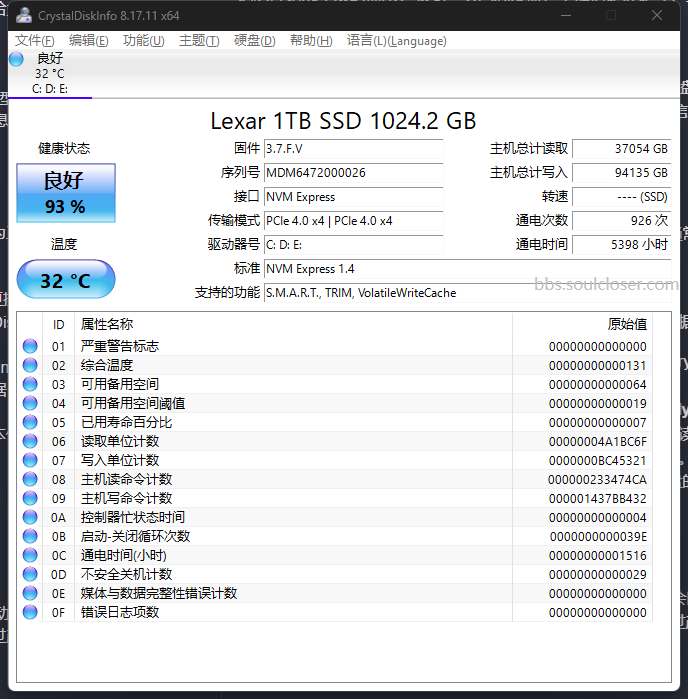
It’s very simple: extract the downloaded archive and double-click DiskInfo64.exe. The program will automatically detect all hard drives connected to your computer and display detailed information for each one. If any issues are detected, the software will alert you with color-coded indicators and warning messages.
Conclusion
Hope this article is helpful to you  Bookmark this page to avoid losing it
  Forum periodically updates excellent
  resources and information
  Welcome to join the forum and subscribe to our email updates
  If you encounter any problems
 Feel free to discuss in the comments section or contact @BOBO.
Copyright Notice: This is an original article. Please cite the original link when referencing. Full-copy pasting is not allowed.